
How it works

A place for everyone.
A thread for your projects.

Choose your workspace, record your work and find the details in your reports. Your usage mode determines where the data lives.

STANDALONE

Your computer.
Your workspace.

Work on your own, without a server or an online account. Your projects, time entries, notes and exports stay on this computer.

No connection neededOne local personal profilemacOS, Windows and LinuxStart on your own
IN YOUR BROWSER

One address.
And you’re there.

Open your team’s HTTPS address. Access your projects, timer and reports without installing a client.

Server connection requiredA layout that adapts to small screensFrench, English and GermanJoin a team

Everyday use

Four steps
to stay on track.

Follow your work from the chosen project to the shared review.

Try the demo timer

Choose your project

Create a project in your personal workspace or choose one assigned by your team. Tasks are optional.

Record your time

Start the timer, pause when needed and finish. You can also add past work manually.

Add the context

Describe the work, add a note and write the monthly summary. You decide what becomes shared.

Review the results

Review completed entries and export your report. Administrators also prepare collective reports.

Working together

One shared server.
Your connected devices.

One instance hosts one team workspace. Accounts and permissions are shared by browser and desktop clients.

On desktop: a separate personal workspace and a local outbox for team time entries.

Read the technical architecture

Connected when it matters

What stays available
when the network stops.

UsageStandalone desktopTeam desktop clientBrowser
Server neededNoneFirst sign-in and synchronisationYes
Timer and new entriesAvailable locallyAvailable offline after initial account setupOn the server
Notes and manual summariesAvailable locallyConnection needed for team writesConnection required
Team administration and server correctionsNot applicableConnection requiredConnection required
Final collective reportLocal personal reportsServer and synchronised outboxesServer, for the administrator
Waiting to sync is not server confirmation. Commands remain in the local outbox until accepted. Conflicts are preserved for resolution; V0.1 does not automatically merge divergent histories. Understand sync states.
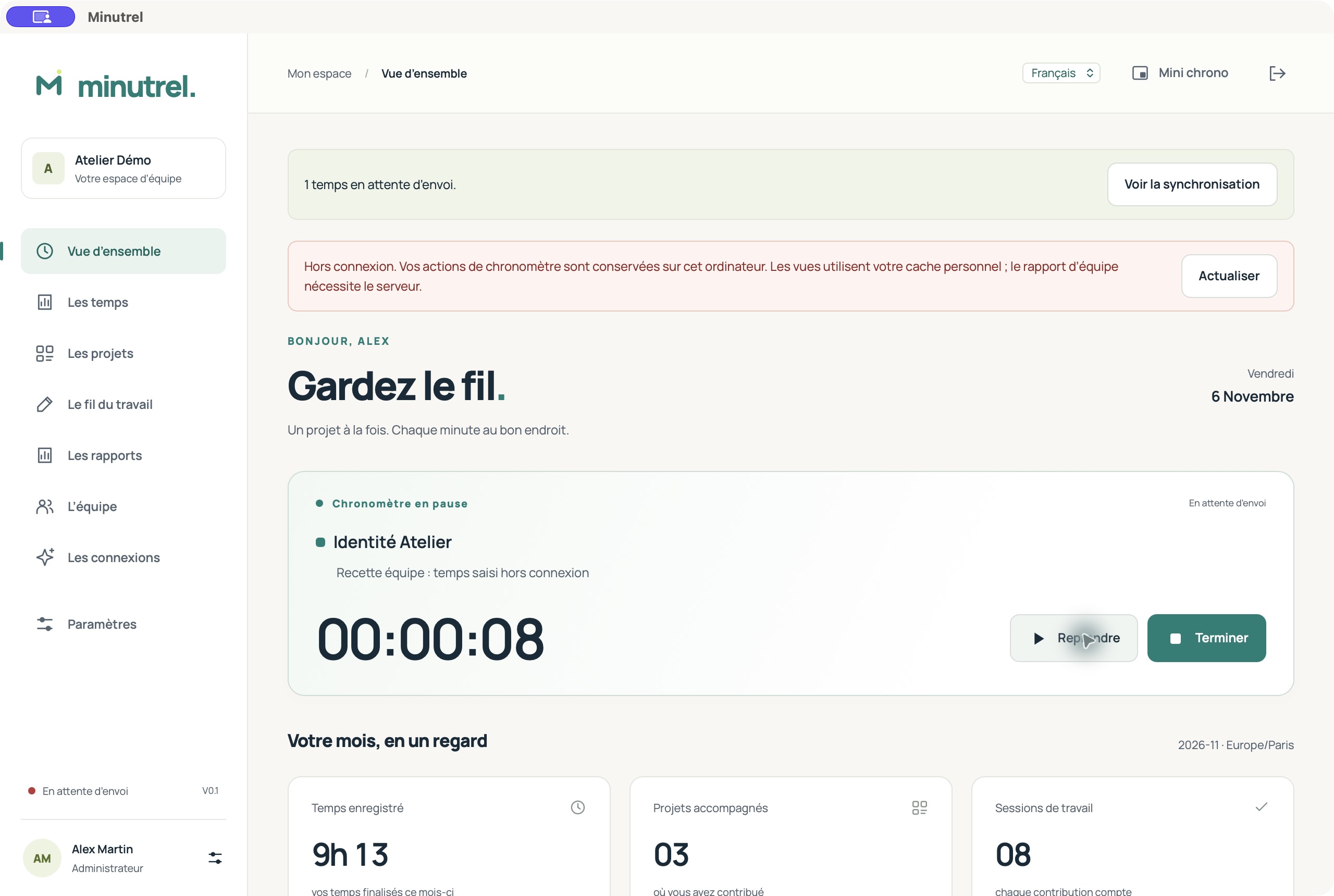
A time entry saved on desktop during an outage
1. Desktop: entry completed and waiting to sync. French interface shown.
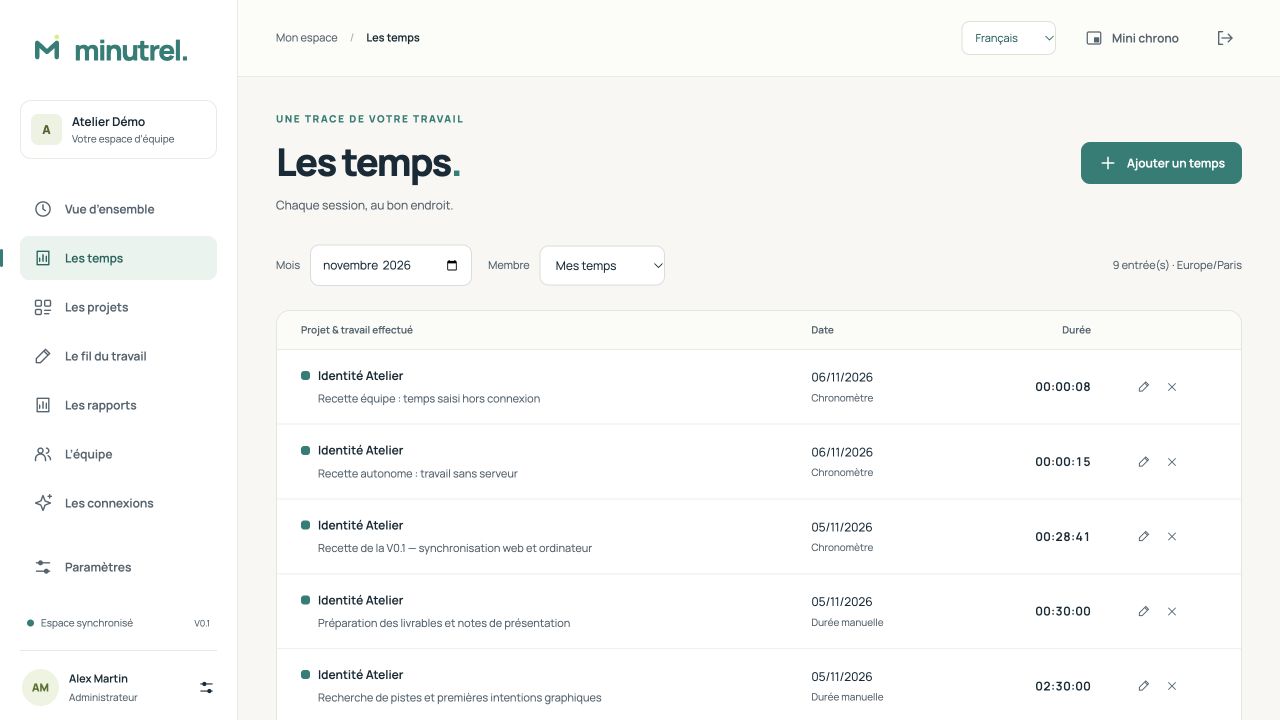
The entry received once in the web history
2. Network restored: the same entry received on the server. French interface shown.

Practical questions

A few things to know
before getting started.

Do I need an account to work on my own?

In the desktop app, choose “Use on this computer”. Your personal workspace needs no online account or server. Its protection relies on your operating system account.

Can I join a team later?

Yes. The workspaces stay separate. After signing in to the team, map personal projects to authorised team projects and choose completed entries to copy. Originals stay local; private notes are not transferred.

Does closing the app stop the timer?

Finish a timer explicitly. Closing a window, quitting or putting the computer to sleep does not automatically finish a local timer or one already received by the server.

Can an assistant change my hours?

Writing providers produce text and cannot change durations. An MCP assistant can control your timer only if you explicitly grant timer.write_own. It receives no permission to manually correct time entries.

Where is the data stored?

For a team, SQLite lives on your own server. On desktop, the personal workspace and sync outboxes live in the app’s private folder. Local files rely on operating system account protection, without independent encryption.

Does Minutrel monitor my files or screens?

Minutrel tracks the project you choose. It does not automatically read folders, screenshots or conversations in other software. AI connections are optional.

Your next project
starts here.

On your own computer or together on your server.

Choose my setup

MINUTREL / VIDEO

Watch the guide.

Follow the real interface, with English narration and subtitles.

Browse all videos ↗

02 / ENGLISH · VOICE & MUSIC

Minutrel — Getting started: track, pause, finish and report

Follow a project from selecting it and recording a session to adding time, sharing a note and exporting a report.

Ctrl/Cmd + K to open · Escape to close · Search stays on this site.